

Description
Zupportly is a powerful, free, and self-hosted ticketing solution that eliminates monthly fees and per-agent costs. It features Unified Agent Management, Automated Ticket Routing, and Role-Based Access Control to securely manage unlimited departments while providing customers a polished frontend portal to track requests. Built with a privacy-first architecture, Zupportly is GDPR-ready, ensuring all support data stays securely on your own server with 100% ownership and no external tracking.
Key features :
- Unified Agent System (WP User-Based)
- Front-end Customer Support Portal
- Intelligent Ticket Auto-Assignment
- Department-Specific Routing
- Read / Unread tracking with ticket count badge on admin menu
- Custom Short Code For New Ticket Page
- Floating Support Chat Bubble
- Auto-refresh on open ticket view — polls every 15 seconds for new replies; shows a pulsing “New reply!” button when updates arrive.
-
Priority levels — Low / Medium / High / Urgent (set by agents only)
-
Custom Agent Avatars & Display Names
-
Live Agent Online Indicator
-
Threaded Chat-Style Conversations
-
Universal Ticket Transfer System
-
Unique Ticket ID Tracking (ZT-XXXXXXXX)
-
Automated Email Notification Engine
-
Modern Card-Style Admin Dashboard
-
Multi-Status Ticket Lifecycle Management
-
Integrated Image Attachment Support
-
Shortcode-Powered Ticket Lookup (
[zupportly_tickets]) -
Inline Ticket Submission Form (
[zupportly_ticket_form]) — embed on any page -
Full Admin Oversight & Team Stats
-
Self-Hosted Data Security (No External APIs)
-
Responsive UI
Agent & Department Management
– Agents are standard WordPress users with the Ticket Agent role — create them from Users Add New.
– Each agent gets a custom Chat Bubble Display Name (e.g. “Billing Dept”, “Sales Team”) shown to customers in the chat bubble — completely separate from their WordPress display name.
– Upload a custom avatar per agent via the Settings page using the WordPress Media Library.
– Avatars and department names appear in the chat bubble, ticket list, ticket detail view, and the frontend customer portal.
Chat Bubble
– A floating chat bubble appears on every page of your site, letting customers open a new support ticket in seconds.
– The bubble header shows stacked agent avatars and a live green online indicator next to the “Support” label.
– Customers choose a department/agent from a dropdown that shows the custom bubble display names.
– The close (×) button reliably dismisses the form.
Ticket Lifecycle
– Every ticket gets a unique ID (e.g. ZT-XXXXXXXX) for easy reference and lookup.
– Statuses: New (blue), In Progress (orange), Solved (green), Closed (grey).
– Unlimited back-and-forth conversation with image attachments in every reply.
– Both agents/admins and customers can close tickets; closed tickets disable further replies.
Agent Assignment & Transfer
– Tickets submitted via the chat bubble are automatically assigned to the chosen agent.
– Agents see all tickets assigned to them plus all unassigned tickets in their list.
– When an agent replies to an unassigned ticket, it is automatically assigned to them.
– Any agent or admin can transfer a ticket to another agent at any time via the Assignment meta box.
– Once transferred, only the new assignee and admins can reply.
Admin Interface
– Dashboard — stats overview (total, new, in progress, solved, closed), recent tickets table, and team overview with open ticket counts per agent.
– All Tickets — beautifully styled ticket list with card rows, colour-coded status border accents, ticket number chips, stacked customer info, agent avatars, and inline row actions.
– Ticket Detail — structured details panel, chat-bubble conversation thread (agent right/blue, customer left/green), and a clean reply composer with image attachment support.
– Create Ticket — agents and admins can create tickets on a customer’s behalf with an agent picker showing avatars.
– Settings — unified agent table pulling directly from WordPress users; set the Chat Bubble Display Name and avatar per agent; configure the frontend Ticket View Page URL.
Frontend Customer Portal & Shortcodes
– Shortcode [zupportly_tickets] places a ticket lookup portal on any page. Customers enter their email to see all their tickets, or enter their email and ticket number to jump straight to a specific conversation.
– Shortcode [zupportly_ticket_form] embeds the full ticket submission form directly on any page — great when the floating chat bubble is turned off or you want a dedicated contact/support page.
– Modern card design with a gradient header, status pill, chat-style bubbles with agent avatars, and an inline reply input.
– The ticket view is wider and fully responsive for mobile.
Email Notifications
– Agent notified on new ticket assignment with ticket details.
– Customer receives confirmation on submission with their ticket number and a link to the view page.
– Both parties notified on new replies (with image links if attached).
– Ticket view page URL included in all notification emails.
Security & Performance
– All inputs sanitized and escaped. Nonces on every AJAX action.
– Agents only access their own tickets plus unassigned ones — proper capability checks throughout.
– All data stored in your own WordPress database — nothing leaves your server.
⭐ Zupportly Pro — Take Your Helpdesk Further
Upgrade to Zupportly Pro and unlock a complete professional helpdesk suite built on top of everything you already have in the free version. No migration, no data loss — just more power.
🧩 Custom Form Fields
Add unlimited custom fields to your ticket form — short text, long text, dropdown, checkbox, number, and URL types. Drag and drop to reorder every field (including built-in fields like Name, Email, Subject) in any order you want. Rename any field label and set custom placeholder text. Custom field values are saved with every ticket and displayed in the admin ticket view.
📚 Knowledge Base
Create a full Knowledge Base with categorised articles and a professional article layout. A smart suggestion popup appears directly below the Subject field as customers type — showing matching articles before they submit, reducing your ticket volume. Helpful vote counters (👍 Yes / 👎 No) track article usefulness. Agents can search KB articles from inside any ticket. Mark any WordPress Page or Post as a KB article with one click.
⚡ Canned Responses
Speed up replies with one-click pre-written responses. Agents can insert responses from a searchable modal filtered by category. Agents can also save their own personal responses directly from the reply composer — just write a reply and click “💾 Save Current Reply.”
🛒 WooCommerce Integration
Link WooCommerce orders and products to support tickets. Customers can search by Order ID when submitting a ticket. Agents see full order details, purchase history, and linked products in the ticket sidebar. Configurable agent access permissions — restrict order data to admins only if needed.
✉️ Branded HTML Emails
Replace plain-text notification emails with beautifully designed HTML emails. Upload your logo, choose a brand colour, customise the “From” name and footer text. Includes a live browser preview.
⏱ Ticket Auto-Close
Automatically close tickets that have been inactive for a configurable number of days. Sends a reminder email before closure. Choose which ticket statuses to apply auto-close to.
🔒 Private Notes
Agents can add internal-only notes to any ticket. Private notes are stored separately from the conversation thread and are never shown to customers.
⭐ CSAT Surveys
Automatically send a 1–5 star satisfaction survey when a ticket closes — via email and as an inline widget in the customer portal. Results appear in a WP Dashboard widget showing average score and per-star breakdown.
🔔 Auto-Refresh & Live Updates
Configurable auto-refresh keeps the dashboard and ticket list current. A Refresh button with a live unread count badge is added to the dashboard. Set the refresh interval (15–600 seconds) from Pro Settings.
🏷 Custom Ticket Statuses
Add unlimited custom statuses alongside the four built-in ones. Each status has a custom label, URL slug, and colour picker for visual clarity in the ticket list.
📋 Audit Trail & Activity Logs
Every action on every ticket is automatically logged — replies, status changes, assignments, private notes, auto-closes, and CSAT ratings. View per-ticket logs in the Activity Log meta box. Export as Excel/CSV or print as PDF.
💾 Backup & Restore
One-click JSON export of all tickets and Pro settings. Import on any Zupportly site to restore or migrate data.
Screenshots
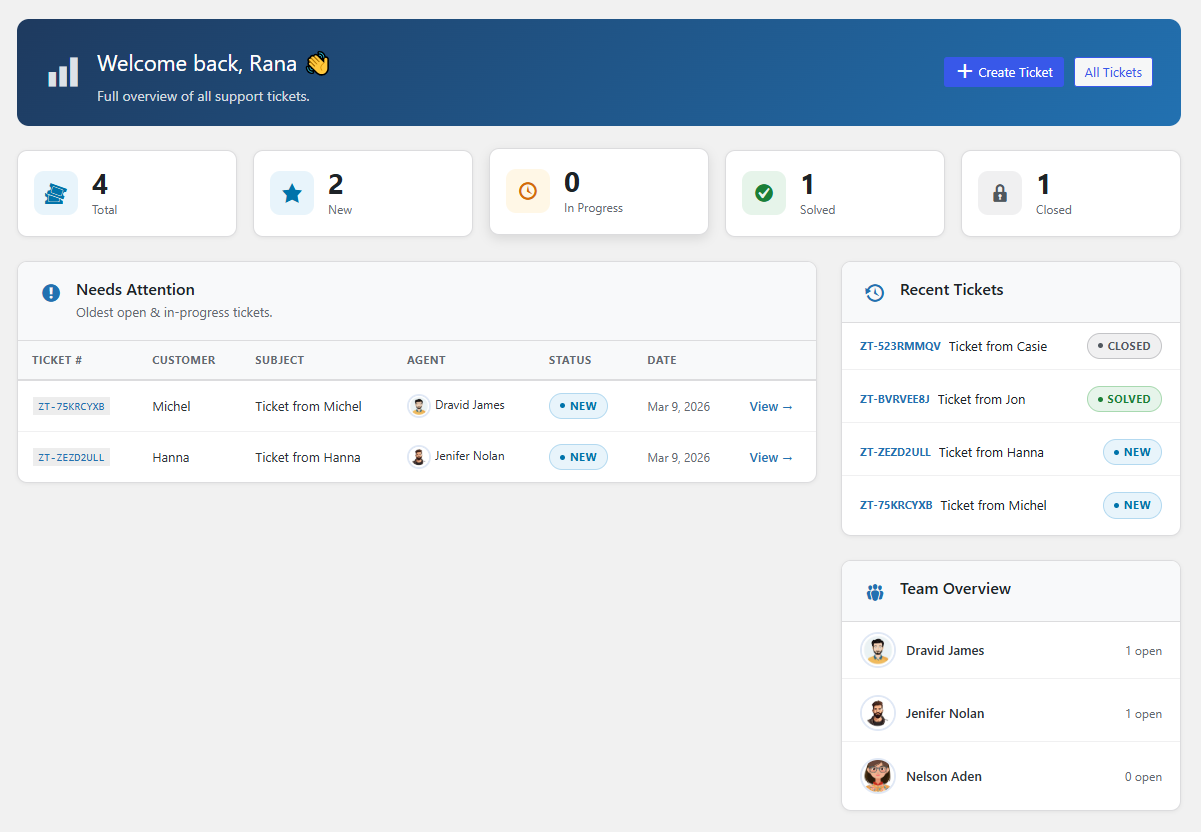
Overview Dashboard — A high-level view of your support ecosystem, showing active ticket counts and agent assignments. 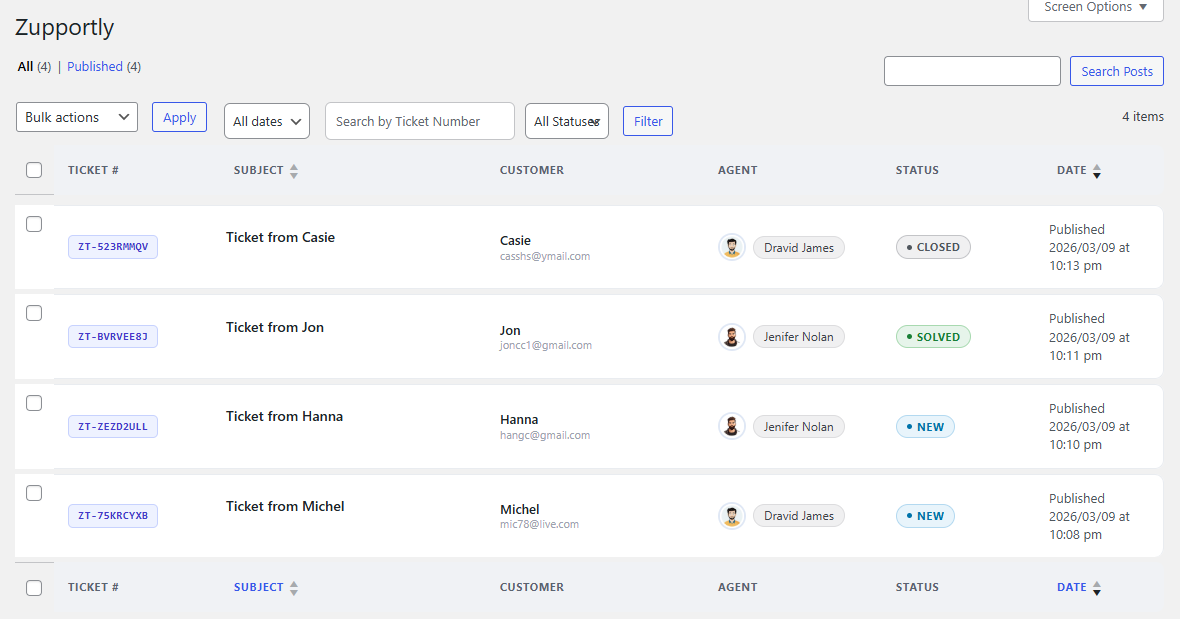
All Tickets Management — A card-style list featuring color-coded status borders, unique ticket ID chips, and customer data for rapid sorting 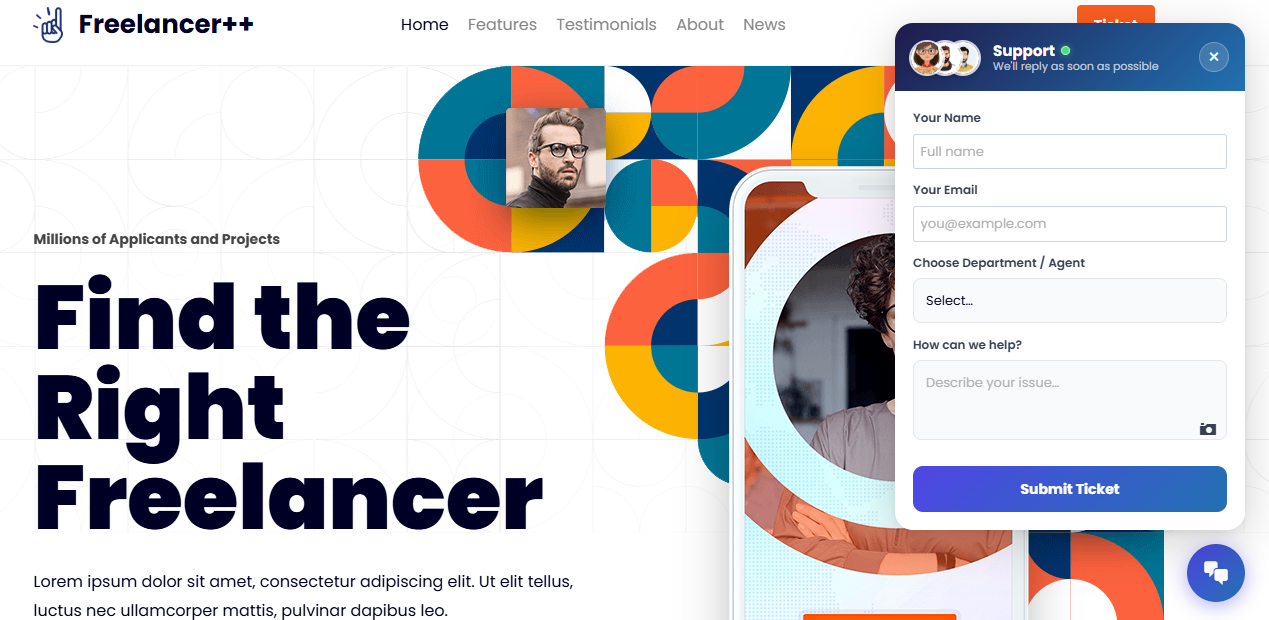
Interactive Chat Bubble — The frontend floating support form with stacked agent avatars, online status indicators, and department routing. 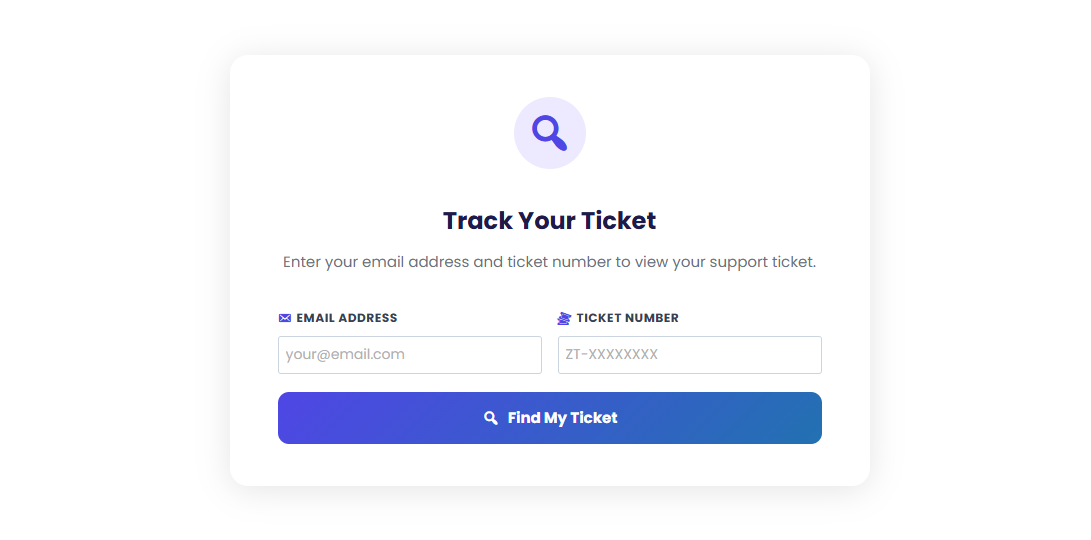
Customer Support Portal — A secure frontend tracking view where users enter their email and ticket number to access their conversation. 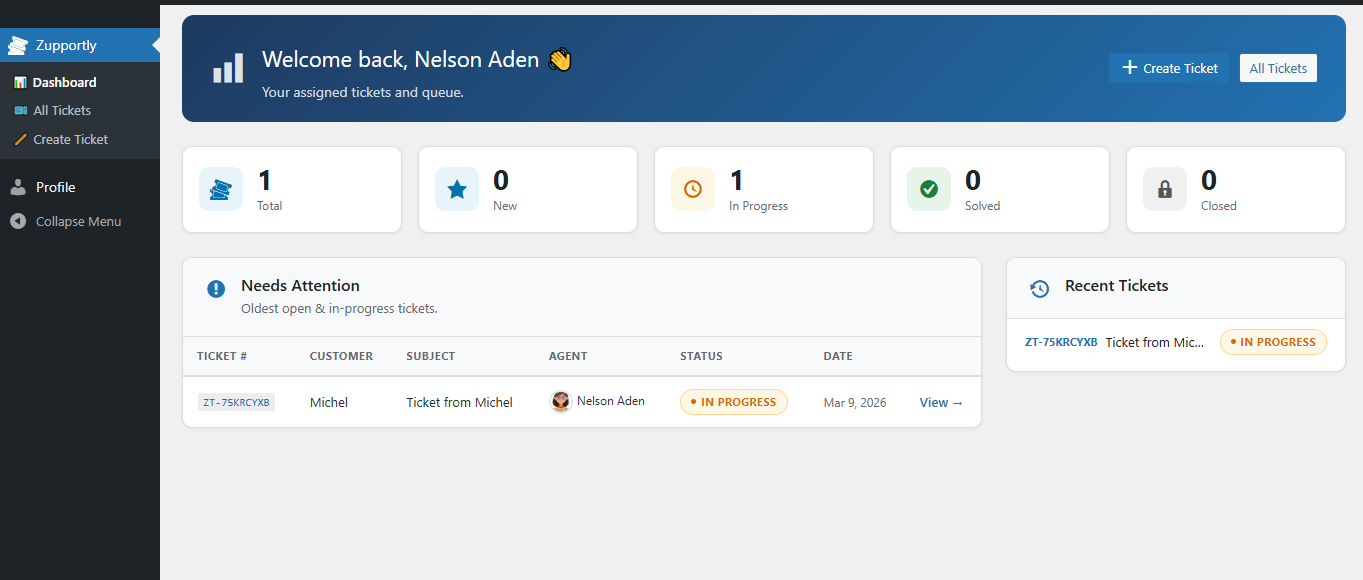
Agent Detail Workspace — The specialized dashboard for support staff to manage replies, update statuses, and view image attachments. 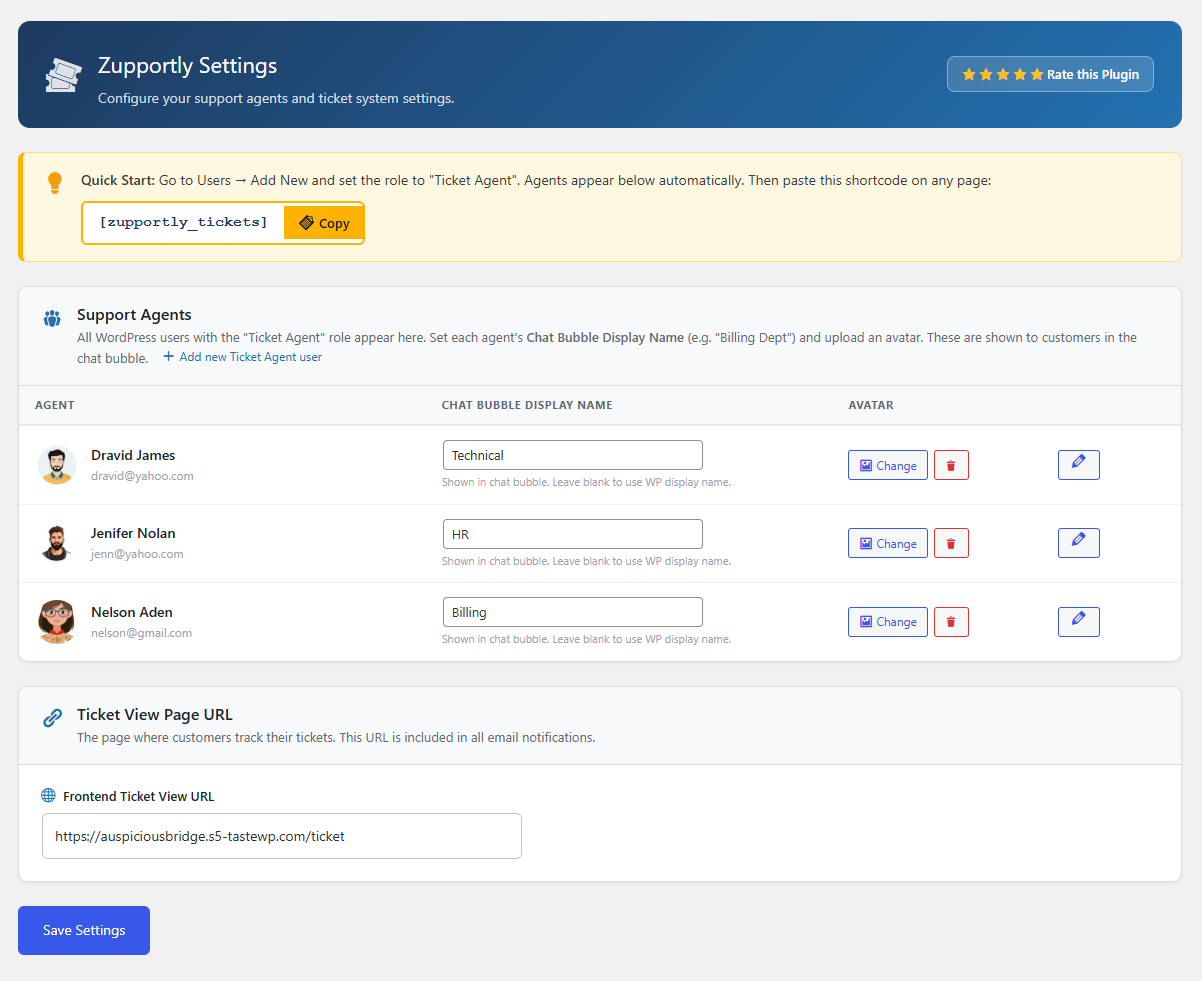
Unified Plugin Settings — Centralized configuration for managing agent profiles, custom display names, and individual avatar uploads. 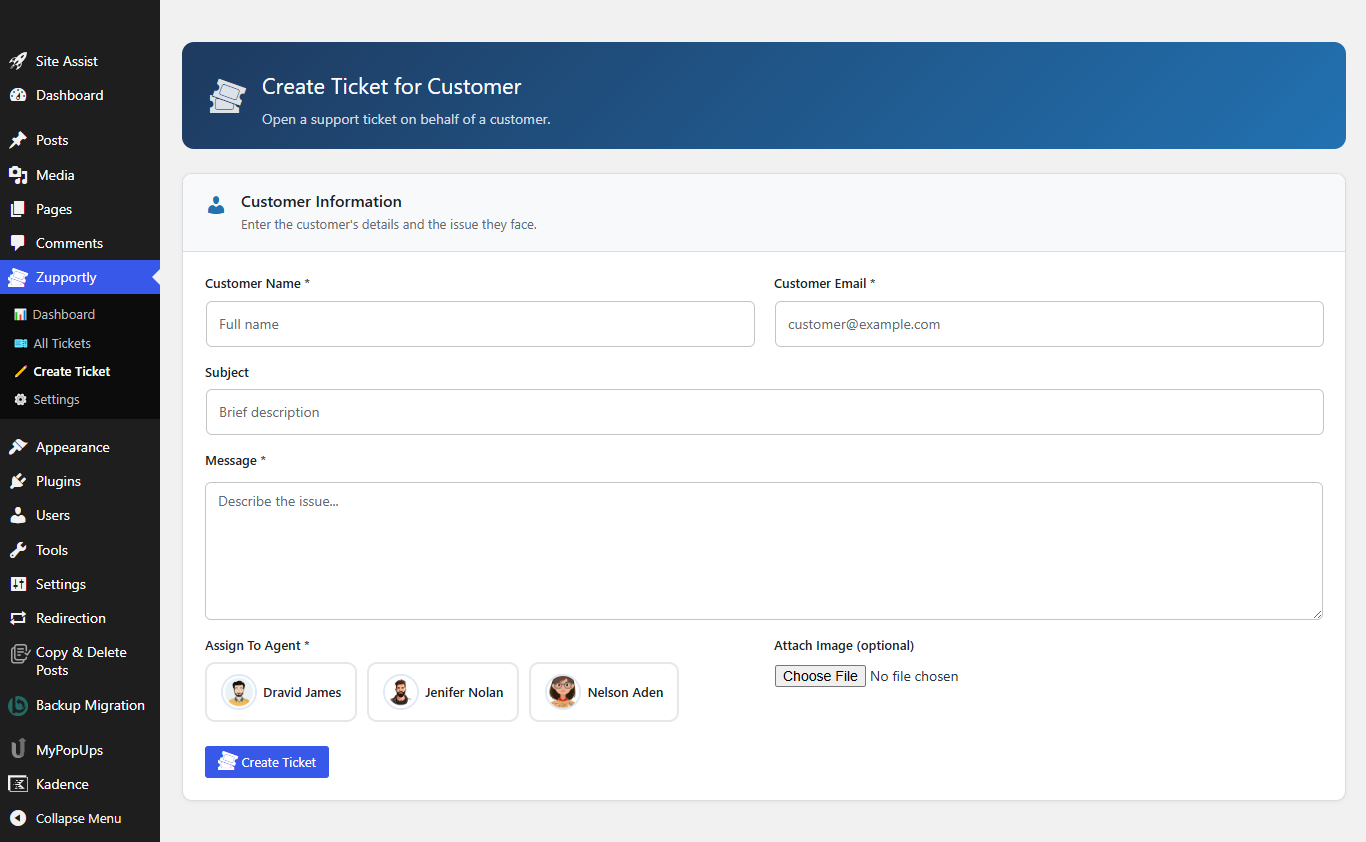
Manual Ticket Creation — The internal interface used to create support tickets on behalf of a client with a dedicated agent assignment picker.
Installation
- Upload the
zupportlyfolder to/wp-content/plugins/. - Activate the plugin through the Plugins menu in WordPress.
- Go to Zupportly Settings to configure agents and the ticket view page URL.
- Go to Users Add New and set the role to Ticket Agent to create support agents.
- Create a page and add the shortcode
[zupportly_tickets]— this is where customers track their tickets. - Optionally, create a separate page with
[zupportly_ticket_form]to embed the ticket submission form inline (useful when the chat bubble is turned off). - In Settings, set the URL of that page so it is included in all notification emails.
- The chat bubble will appear automatically on every frontend page once at least one Ticket Agent user exists.
FAQ
-
How do I add support agents?
-
Go to Users Add New in WordPress and set the role to Ticket Agent. The agent will immediately appear in the Zupportly Settings page where you can set their chat bubble display name and avatar.
-
What is the Chat Bubble Display Name?
-
It is a custom name shown to customers in the chat bubble dropdown — separate from the agent’s WordPress display name. Use it to show a department name (e.g. “Billing”, “Technical Support”) instead of a person’s name, so customers know which team they are contacting.
-
How do customers view their tickets?
-
Create any WordPress page, add the shortcode
[zupportly_tickets], and publish it. Customers enter their email address to see all their tickets, or enter their email and ticket number to jump straight to a specific conversation. -
Can agents upload image attachments?
-
Yes — agents can attach images when replying from the admin ticket detail page. Customers can also attach images when submitting a ticket or replying from the frontend portal.
-
Can tickets be transferred between agents?
-
Yes. Any agent or admin can open a ticket and use the Transfer / Assign To meta box to reassign it to another Ticket Agent user.
-
What happens when an agent replies to an unassigned ticket?
-
The ticket is automatically assigned to that agent upon their first reply, and they become the primary handler.
-
Can tickets be closed?
-
Yes — agents and admins can close tickets from the admin panel, and customers can close their own ticket from the frontend portal. Closed tickets disable further replies for everyone.
-
Are email notifications sent automatically?
-
Yes — emails are sent to the agent on new ticket creation and to the customer on ticket submission, agent replies, and ticket closure.
-
Is the plugin secure?
-
Yes — all user inputs are sanitized and escaped, every AJAX request is verified with a nonce, capability checks gate all admin actions, and agents can only see tickets assigned to them or unassigned tickets.
-
Does it work with any theme?
-
Yes — the frontend chat bubble and ticket portal are fully self-contained with their own CSS and do not depend on any theme styles.
-
Can I embed the ticket submission form on a page instead of using the chat bubble?
-
Yes. Use the shortcode
[zupportly_ticket_form]on any page to embed the full ticket submission form inline. This is ideal when you want a dedicated “Contact Support” or “Submit a Ticket” page, or when the floating chat bubble is turned off in Settings. -
Is there a Pro version?
-
Yes! Zupportly Pro adds Custom Form Fields, Knowledge Base with smart suggestions, Canned Responses, WooCommerce Integration, Branded HTML Emails, Ticket Auto-Close, Private Notes, CSAT Surveys, Audit Trail, Backup & Restore, Custom Ticket Statuses, and more.
Reviews

Contributors & Developers
“Zupportly – WordPress Helpdesk & Customer Support Ticket System” is open source software. The following people have contributed to this plugin.
Contributors

Translate “Zupportly – WordPress Helpdesk & Customer Support Ticket System” into your language.
Interested in development?
Browse the code, check out the SVN repository, or subscribe to the development log by RSS.
Changelog
1.2
- Bug Fix
- Customers can view all tickets associated with their email address. A ticket number (sent via email) is required to access any ticket.
1.1
New Features
* Ticket subject line field on all submission forms
* Priority levels: Low / Medium / High / Urgent — agents-only, shown in admin list, ticket details, and customer portal with readable colour-coded badges
* Read/Unread state — customer/agent replies mark ticket unread; opening in admin marks read
* Ticket count badge on admin menu (unread + new tickets)
* Frontend portal email-only search returns a full ticket list with View buttons
* Priority filter dropdown in admin ticket list
* Copyable ticket number chip in success banner and ticket view header — click to copy
* Auto-refresh on customer ticket view — polls every 15s, shows “New reply!” badge, reloads without re-entering credentials
* Ticket submit success redesigned as a green banner with ticket number chip above the form
* All settings auto-save (bubble toggle, display names, view URL) — no global Save button needed
* Ticket View URL section has a compact instruction panel explaining what the field is for
1.0
- Initial release — floating chat bubble, ticket submission, agent management, threaded conversations, email notifications, admin dashboard